Apple Pay ATM: How To Withdraw Cash Without a Card
 Written by
Quinlan Grim
Written by
Quinlan Grim
 Edited by
Joe Evans, CFHC™
Edited by
Joe Evans, CFHC™
Commitment to Our Readers
GOBankingRates' editorial team is committed to bringing you unbiased reviews and information. We use data-driven methodologies to evaluate financial products and services - our reviews and ratings are not influenced by advertisers. You can read more about our editorial guidelines and our products and services review methodology.

20 Years
Helping You Live Richer

Reviewed
by Experts

Trusted by
Millions of Readers
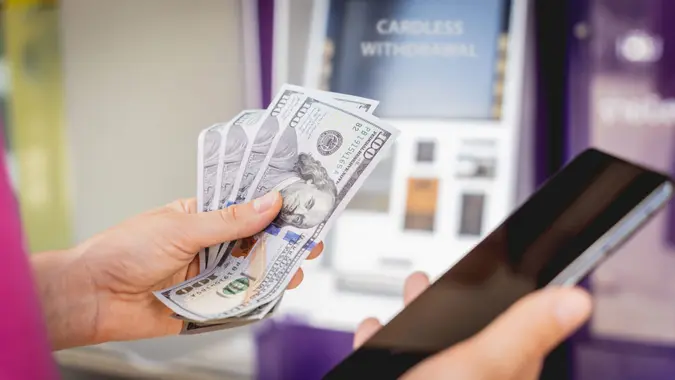
Yes — you can use Apple Pay at an ATM — but only at machines that support contactless or cardless withdrawals.
Instead of inserting your debit card, you tap your iPhone or Apple Watch at the ATM’s NFC reader. The transaction pulls from your linked debit card inside Apple Wallet.
Here’s how it works, which banks support it and what to watch for.
At a Glance: Apple Pay at an ATM
- You need a bank debit card added to Apple Wallet
- The ATM must support contactless/NFC withdrawals
- You authenticate with Face ID, Touch ID or passcode
- You may still need to enter your PIN
- ATM fees may still apply
How To Use Apple Pay at an ATM
If you’re wondering how to use Apple Pay at an ATM, follow these steps:
Step 1: Confirm the ATM Supports Contactless
Look for the contactless symbol (four curved lines) on the ATM.
Step 2: Open Apple Wallet
Double-click your side button (iPhone) or use Apple Watch.
Step 3: Select Your Debit Card
Choose the debit card linked to your checking account.
Step 4: Tap Your Device
Hold your iPhone or Apple Watch near the ATM’s contactless reader.
Step 5: Authenticate
Use Face ID, Touch ID or passcode.
Step 6: Enter Your PIN
Most banks still require your debit card PIN.
Step 7: Withdraw Cash
Select your withdrawal amount and complete the transaction.
Which Banks Support Apple Pay ATM Withdrawals?
Not every ATM works with Apple Pay. You’ll need:
- A participating bank
- A contactless-enabled ATM
Major banks that support cardless ATM withdrawals include:
Availability depends on the ATM model and location.
Is Apple Pay at an ATM Safe?
Yes, and in some cases, it’s safer than using a physical card. Apple Pay uses:
- Device-specific encryption
- Tokenization (your actual card number isn’t shared)
- Biometric authentication
That means even if someone intercepts the signal, they won’t get your real card number. Apple states that it doesn’t store transaction information that can be tied back to you.
Do You Still Need Your PIN?
Yes. Even though you authenticate with Face ID or Touch ID, most banks still require your debit card PIN at the ATM to complete a withdrawal.
Are There Fees for Apple Pay ATM Withdrawals?
Using Apple Pay doesn’t eliminate ATM fees. You may still pay:
- Out-of-network ATM fees
- Your bank’s withdrawal fee
- Operator surcharge
Using your bank’s own ATM network is usually the best way to avoid extra charges.
Why Apple Pay ATM Might Not Work
Common reasons include:
- ATM doesn’t support NFC/contactless
- Debit card isn’t added to Apple Wallet
- Wallet card isn’t set as default
- Network connectivity issues
- Account security hold
If it doesn’t work, try another ATM location or use your physical card.
Apple Pay ATM vs. Cardless ATM App
Some banks offer cardless withdrawals through their own mobile apps. Difference:
- Apple Pay uses Apple Wallet + NFC
- Bank app withdrawals often generate a QR code or one-time access code
Both methods let you withdraw cash without inserting your debit card.
Final Thoughts to GO
Using Apple Pay at an ATM can save you from digging through your wallet — and it adds an extra layer of security. As long as the ATM supports contactless transactions and your bank participates, the process is fast and secure.
Before heading out, make sure your debit card is added to Apple Wallet and know your PIN. That’s all you need to tap and withdraw.
FAQ
Although using Apple Pay at an ATM is convenient, many people still have questions about how it works. Here are answers to common questions about Apple Pay ATM withdrawals.- Can I use Apple Pay at any ATM?
- No. The ATM must support contactless or NFC withdrawals and your bank must participate in cardless ATM services.
- Do I still need my debit card PIN?
- Yes. Most banks require your PIN even when you authenticate with Face ID or Touch ID.
- Is Apple Pay at an ATM safe?
- Yes. Apple Pay uses encryption and tokenization, so your actual card number isn’t shared during the transaction.
- Are there extra fees for using Apple Pay at an ATM?
- No additional Apple Pay fee applies, but standard ATM fees may still apply depending on the network.
- What should I do if Apple Pay doesn’t work at the ATM?
- Try another contactless ATM, confirm your card is added to Apple Wallet or use your physical debit card instead.
Sarah Horvath contributed to the reporting for this article.
Data is accurate as of Feb. 18, 2026, and is subject to change.
Editorial Note: This content is not provided by any entity covered in this article. Any opinions, analyses, reviews, ratings or recommendations expressed in this article are those of the author alone and have not been reviewed, approved or otherwise endorsed by any entity named in this article.